BBEG Maps – now with UVTT!
In Progress!
Battle maps are already available for VTT use via high-resolution and properly sized image files – we are in the process of updating all of our available maps to include a more user friendly .DD2VTT file to make your life even easier! Check the download descriptions to be sure it includes the Universal VTT file – you can redownload free maps to get this file, or if you have purchased a map and did not receive a notification, please contact support@bbegadventures.com to receive the update when available.
What’s Included in Our Map Packs
When you download maps from our website, you can expect:
- Map Images: Gridless JPG or WEBP files
- Universal VTT Files:
.dd2vttfiles containing LOS, lighting, and wall data
This approach ensures compatibility with all major VTTs while providing high resolution (150px/grid square) image files for manual configuration or use in TTRPG gameplay. NOTE: UVTT and DD2VTT are identical file types and interchangeable, the file extensions serve only to distinguish the software they were created in (ie – DD2VTT uses the Dungeon Draft file extension, which is used by Dungeon Alchemist for exporting UVTT).


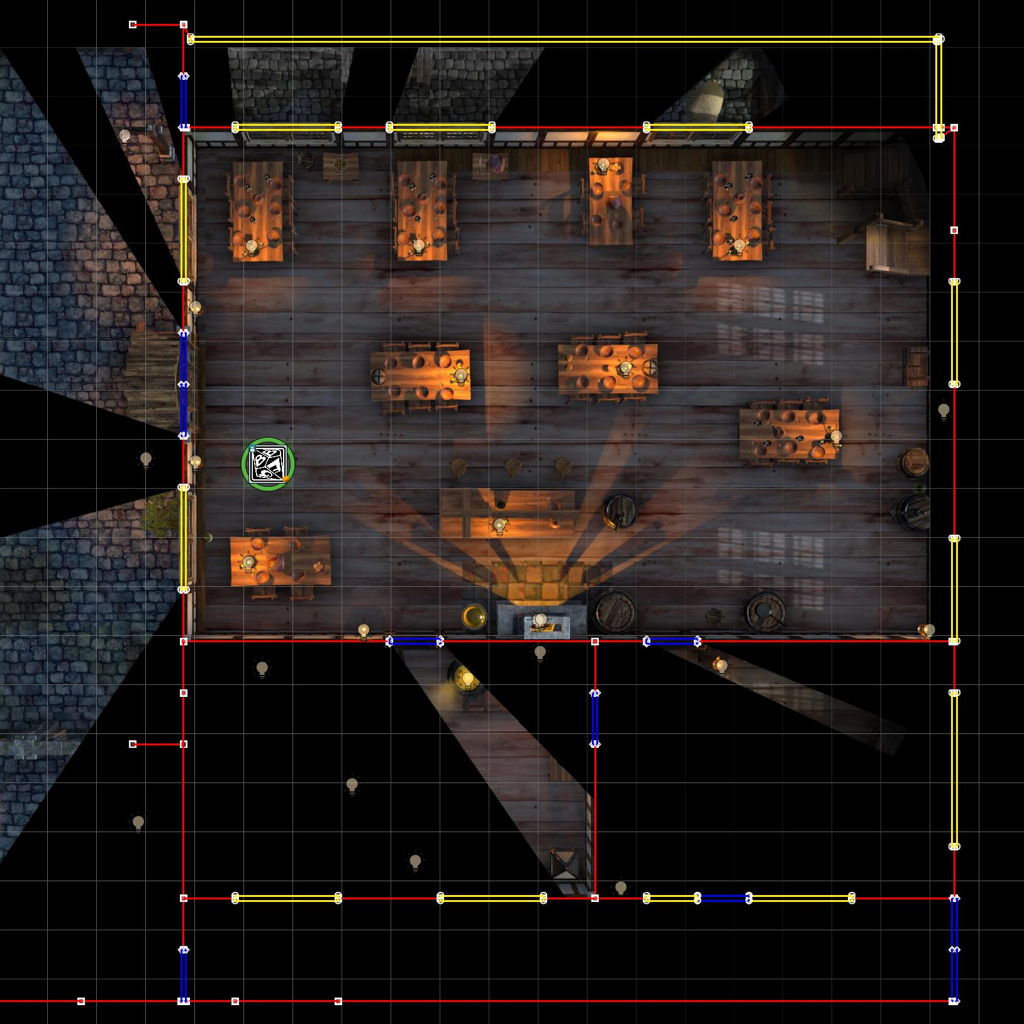
Map image imports with manageable lights, and editable walls for LOS gameplay! How easy is that?!
VTT Map Files & Import Workflow
Most maps provided on our website are created in Dungeon Alchemist and packaged to work smoothly across the most popular Virtual Tabletop (VTT) platforms.
To simplify setup and maximize compatibility, our default format for automated lighting and line-of-sight (LOS) is the Universal VTT format (.dd2vtt, also known as .uvtt). This format is widely supported and allows GMs to import maps with walls, lighting, doors, and windows already configured.
- Works across Foundry, Fantasy Grounds Unity, Roll20, AboveVTT, and more
- Includes walls, lighting, doors, windows, and line-of-sight data
- Reduces setup time and avoids platform-specific exports that we are not able to test
- Lets GMs choose their preferred VTT without needing different map versions
Using a single, widely supported format allows us to focus on consistent quality and test map files while keeping downloads easy to understand.
Platform-Specific Notes
Fantasy Grounds Unity (FGU)
- Import Method: Import the
.dd2vttfile through the Images tab - Automation: Automated LOS (including walls, doors and windows) and lighting supported
FGU Forge Users:
We also offer Fantasy Grounds Unity–specific map packs on the FGU Forge Store. These versions include additional enhancements such as effects and other platform-specific features beyond standard LOS and lighting.

Foundry VTT
- Import Method: Import the
.dd2vttfile via Scenes tab - Automation: Walls and lighting are applied automatically
- Notes: Requires “Universal Battlemap Importer” in the Add-on Modules tab. In the Scenes tab use the installed module to import the
.dd2vttfile.
AboveVTT
- Import Method: Import the
.dd2vttfile directly in new scene - Automation: Walls, lighting, doors, and LOS are imported automatically
- Note: Requires hosting of .dd2vtt file in a publicly accessible cloud server
Roll20
- Import Method:
.dd2vttimports require API access (Pro subscription level only)- Must upload the map image, extract the wall/lighting data from the .ddvtt and paste it into the GM Notes using the Roll20 UniversalVTTImporter API Script. For full details click here: UniversalVTTImporter (Roll20)
- Without Pro, or to maintain sanity, upload the image and configure LOS/lighting manually.
- Automation: Available with Pro; manual otherwise
Hopefully this helped some of you! Be sure to check your favorite VTT’s wiki or FAQ for more information about getting .UVTT/.DD2VTT files up and running to make your games easy to run and set up.